Paragon Connect Update: Enhanced Spreadsheet Experience
Paragon Connect has been updated with a new Spreadsheet Experience with new ways to sort, organize, and navigate information more efficiently while tailoring table layouts to fit your workflow.
Resize Columns
Gain more control over how data is displayed by adjusting columns to fit your needs.
Resize columns by dragging column boundaries
Improve visibility of longer values without impacting the rest of the table
Create a more personalized view when working with large data sets

Drag and Drop Columns
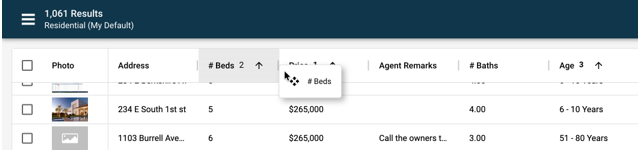
Reorganize columns with a simple drag and drop experience to match your preferred workflow. Customize the layout to prioritize the information that matters most to you.
Rearrange columns using drag and drop
Instantly update the table layout without refreshing the page
Changes to column order are only while working in the spreadsheet and are not saved to your default layout.
Pin Columns Left and Right
Keep important information visible while working with wide tables. Pin frequently used columns to the left or right side of the grid so they remain in view as you scroll horizontally through large datasets.
Pin important columns to the left or right side of the table
Pin 1 or more columns to the left or right for quick access to critical information.
Pinned columns remain visible while scrolling across the table.

Multi-Column Sorting
Quickly sort and organize data directly from the grid. A single click on any column header sorts the results by that column. Click the same column again to toggle between ascending and descending order, making it easy to find the information you need.
For more advanced data analysis, multi-column sorting allows you to sort by multiple fields simultaneously. On Mac, hold the Command key while clicking additional column headers to add secondary and tertiary sorting. Holding Command and clicking a sorted column toggles its sort direction between ascending and descending. On Windows, use Control + Click to achieve the same functionality.
Key Details
Single click a column header to sort by that column.
Click the same column again to switch between ascending and descending order.
On Mac, use Command + Click to add additional sort columns.
On Windows, use Control + Click to add additional sort columns.
Command + Click or Control + Click on an already sorted column changes its sort direction.

Copy and Paste Data
Move information between applications with greater efficiency by copying data directly from the results table. Using familiar keyboard shortcuts, you can copy a selected row and immediately paste it into the applications you use every day.
Key Details
Use Command + C on Mac or Control + C on Windows to copy selected record.
Paste data directly into spreadsheet, reporting, and other tools.
Preserve row and column structure for easier analysis and review.

Hover Tooltips for Truncated Content
View complete values without expanding columns or opening additional screens.
Hover over truncated cell content to view the full value in a tooltip
Makes long names, descriptions, and identifiers easier to review
Available on desktop experiences where hover interactions are supported

Multi-Sort Customizations - Default
You can now create and default multi-column sorting in Paragon Connect Spreadsheet View, giving you more control over how search results are organized and displayed.
What's New
You can now set your default sort and save spreadsheet layouts by up to three columns at the same time:
Primary Sort
Secondary Sort
Tertiary Sort
Enhanced Sort Management
A new Sort button has been added to the Customize panel, providing quick access to the new Sort Options experience. The currently applied sort columns are displayed beside the button, including the sort direction for each column, making it easy to see how results are being organized at a glance.

Flexible Multi Level Sorting
Within Sort Options, you can:
Select up to three fields to define sorting priorities
Choose ascending or descending order independently for each field
Choose from the columns currently included in the spreadsheet view
Avoid duplicate selections through dynamically updated field lists
Save preferred sort configurations as part of their spreadsheet customization settings
Sorted column headers now clearly display both the sort direction and the sort priority (1, 2, or 3), making it easy to understand how results are ordered.
Additional Enhancements
Increased the default number of displayed results from 25 to 50 records, reducing the need to load additional data as frequently.
Selected rows are now clearly highlighted, making it easier to identify and manage one or multiple selected records while working in the grid.